Catálogo de eCommerce do WhatsApp
O Catálogo de E-commerce do WhatsApp é um recurso robusto que permite que empresas exibam e gerenciem seus produtos ou serviços diretamente na plataforma de mensagens do WhatsApp. Essa ferramenta funciona como uma vitrine virtual, permitindo que as empresas criem um catálogo de suas ofertas, completo com descrições de produtos, imagens, preços e links diretos para facilitar a compra.
To create a catalog and integrate it with TalkWoot, follow the below steps.
- Crie um catálogo de eCommerce
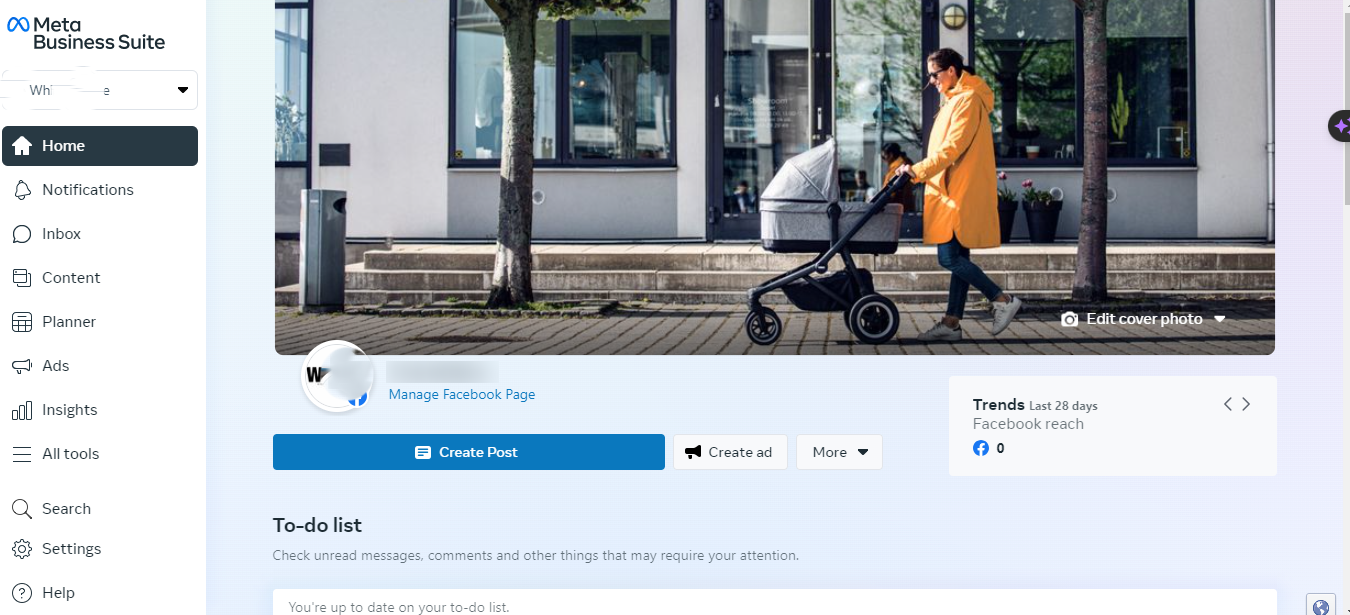
- Go to business.facebook.com.
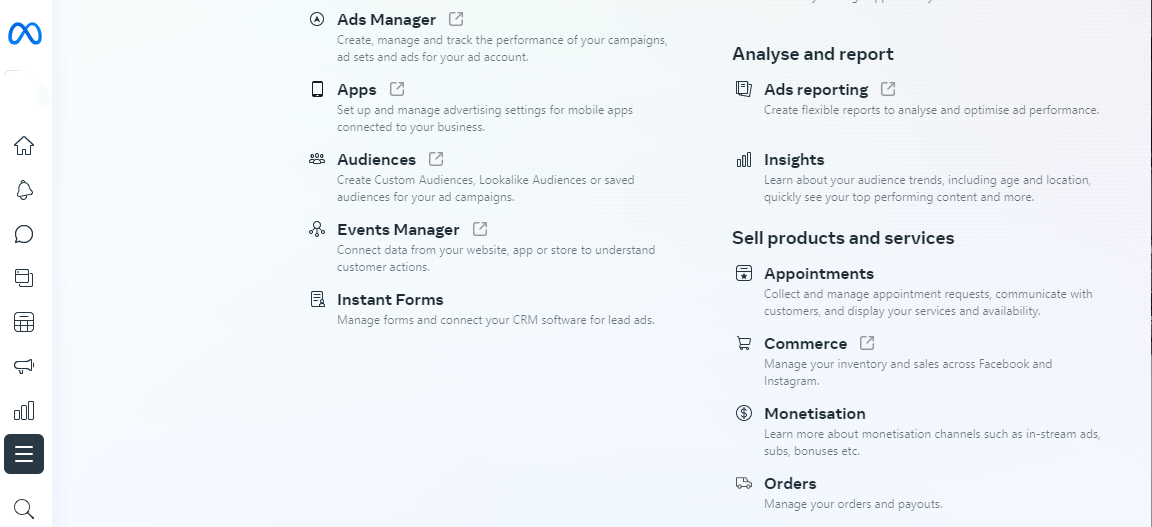
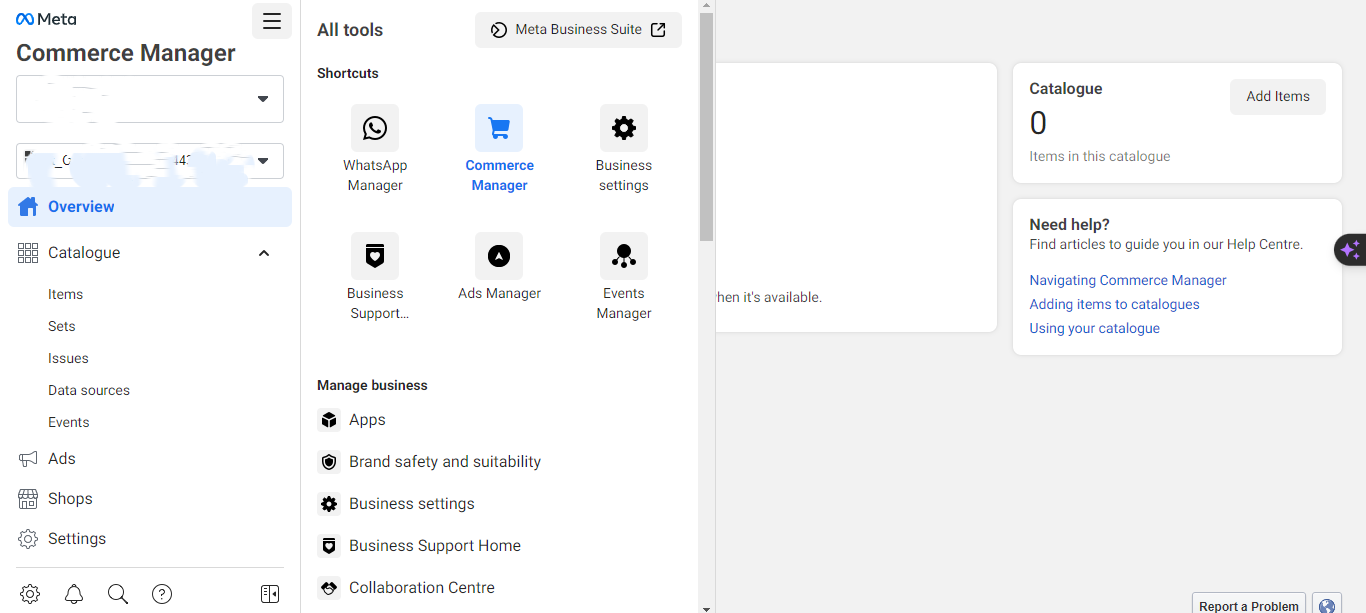
- Click on the `All Tools` menu.
- Click on `Create` and give the template a name.
- Select `Commerce`.
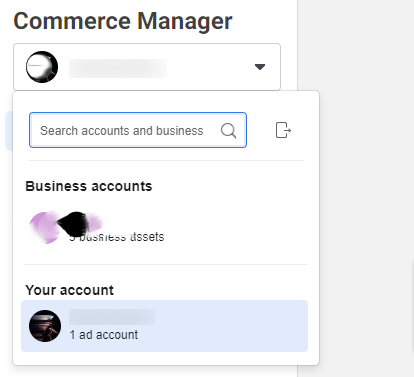
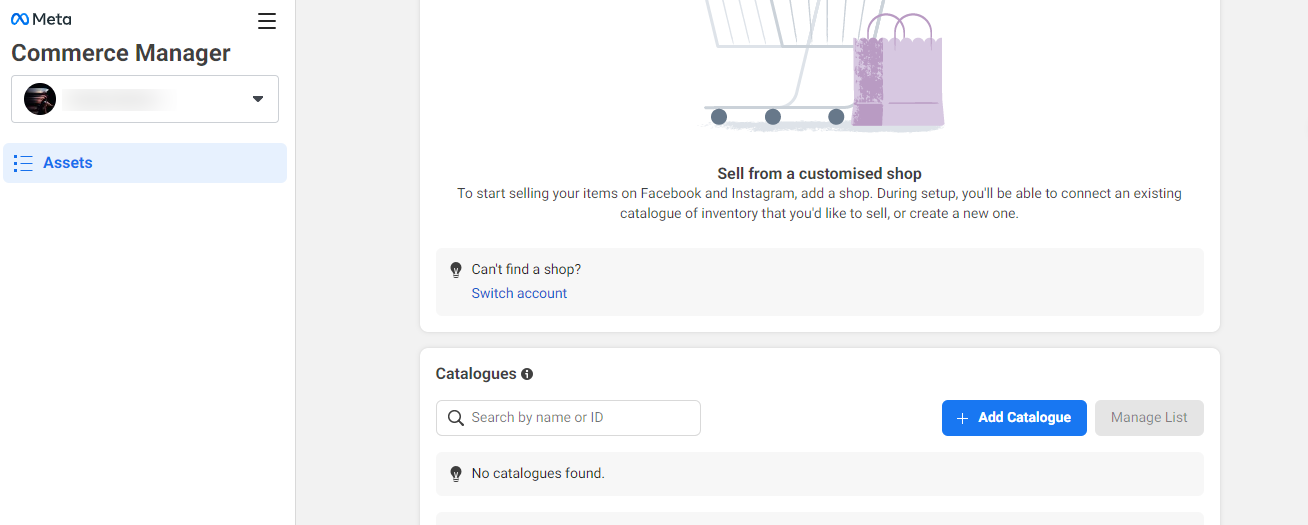
- It will redirect you to the Commerce Manager.
- From the top right corner, click on the profile and select your business account.
- Click on the `Add Catalogue` button.
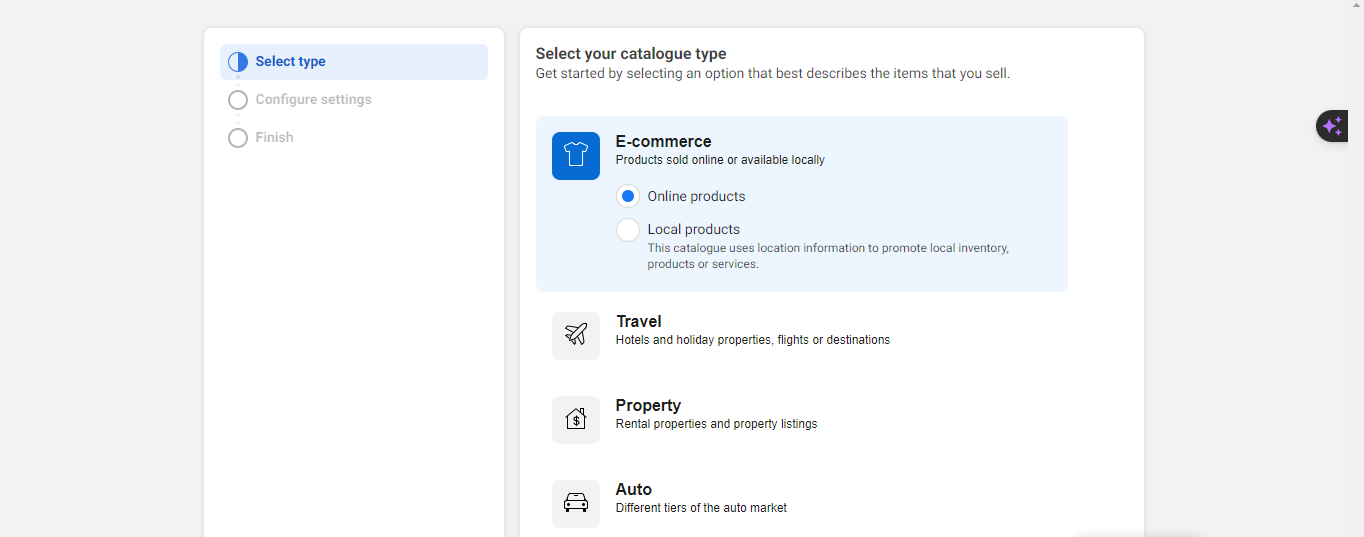
- Choose the catalog type as `E-Commerce`.
- Select `Online` or `Local Products` based on your business type, then click `Next`.
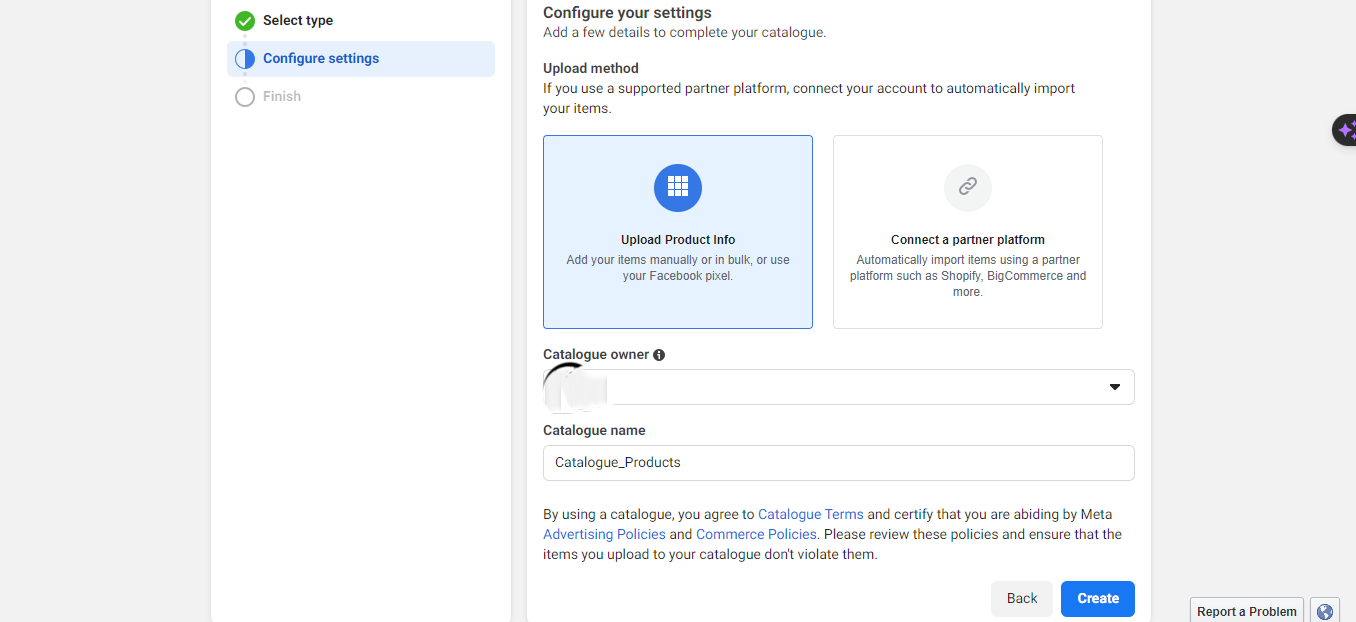
- Choose the upload method (Upload Product Info or Connect a partner platform). For now, select the Upload Product Info.
- In the catalog owner section, select your business if you have multiple businesses.
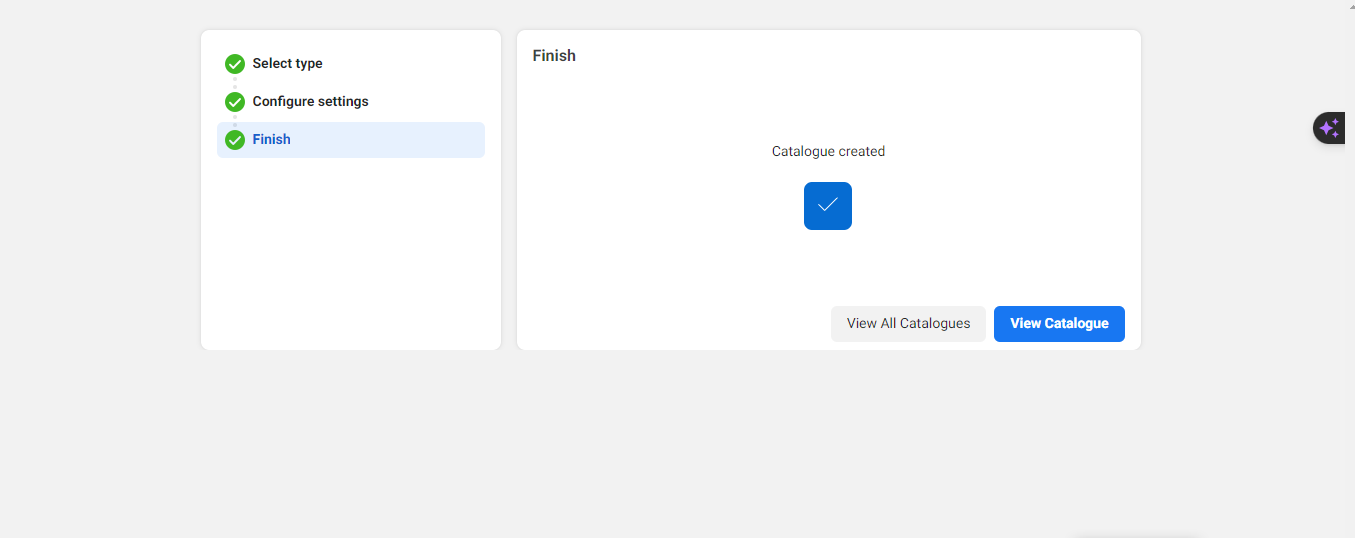
- Give a name to the catalog and click `Create`.
- Add Products to the Catalog Manually
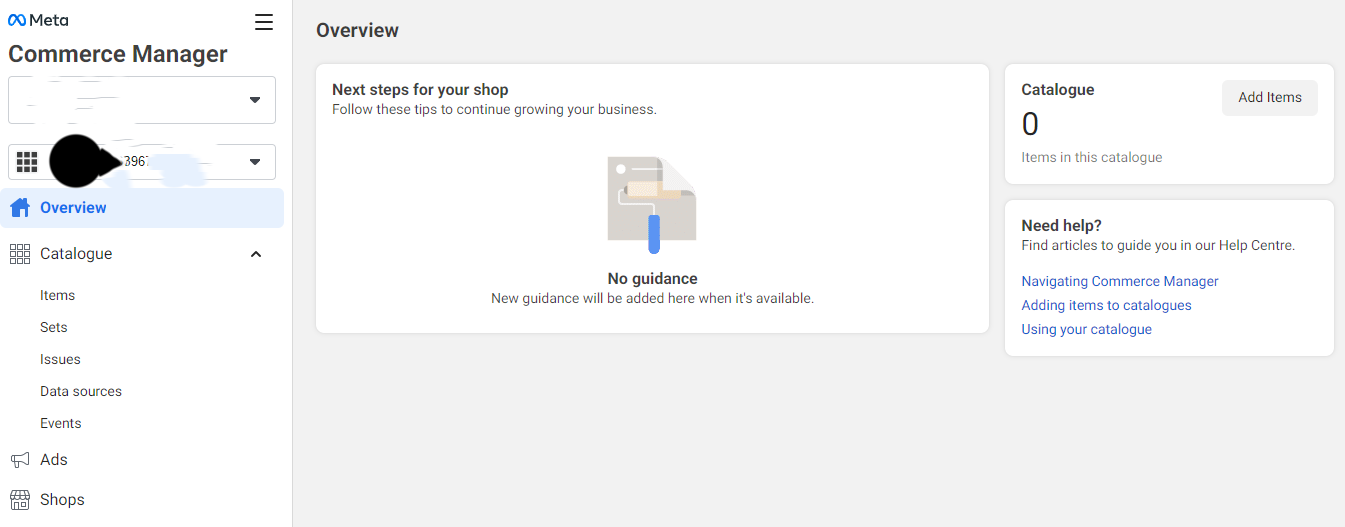
- Click on `View Catalog`.
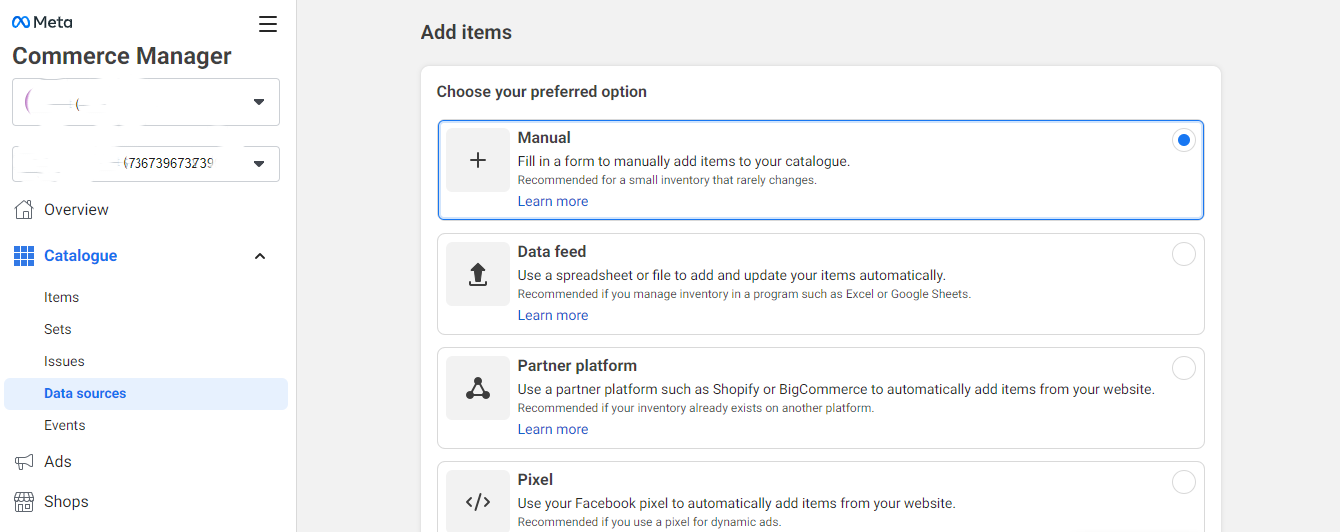
- Click on the `Add Items` button.
- Choose to add products manually.
- Click `Next`.
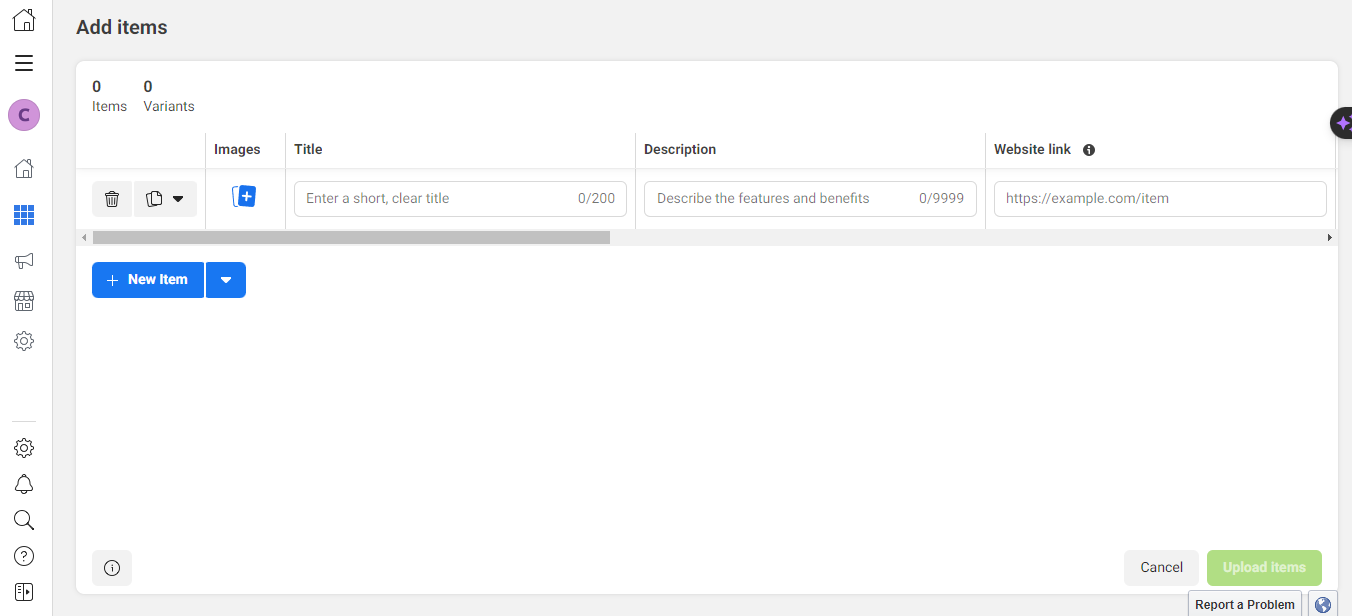
- Upload product images.
- Enter the product title and description.
- Provide the product`s website link.
- Set the price and sale price (if applicable).
- Optionally, select a Facebook product category and condition.
- Configure availability and status options.
- Brand name and content IDs are optional.
- Click `Upload Items`.
- Conecte o catálogo ao WhatsApp
- From the `All Tools` menu, select `WhatsApp Manager`.
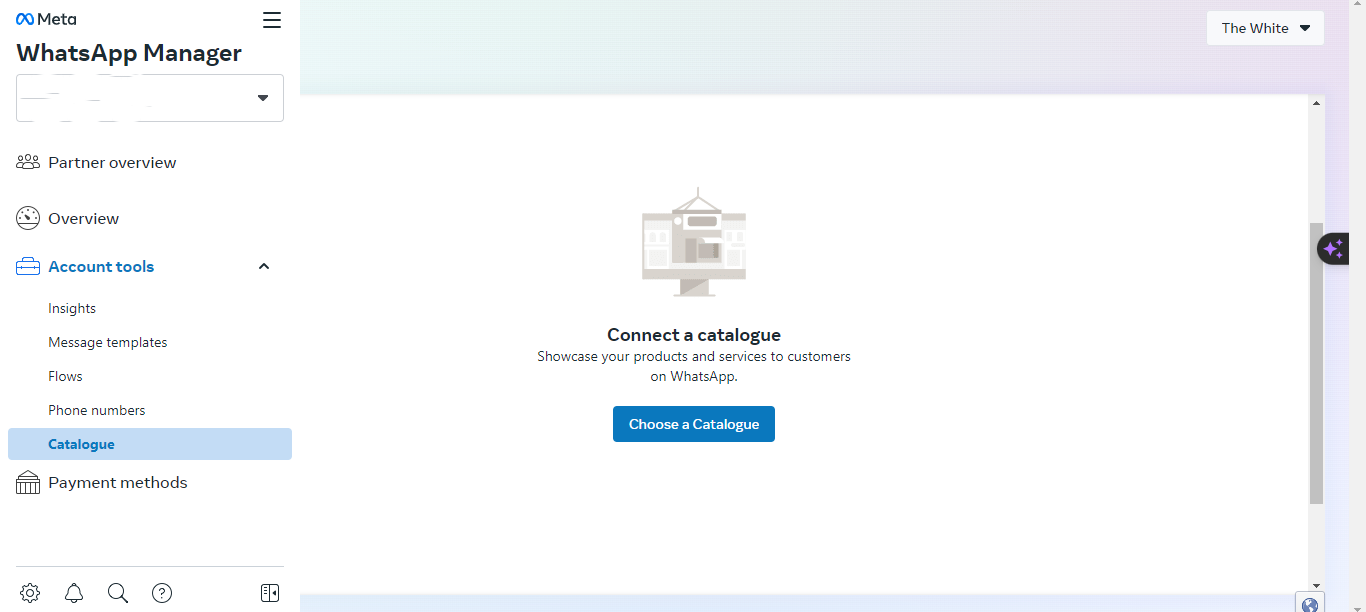
- Under Account Tools, click on `Catalogue`.
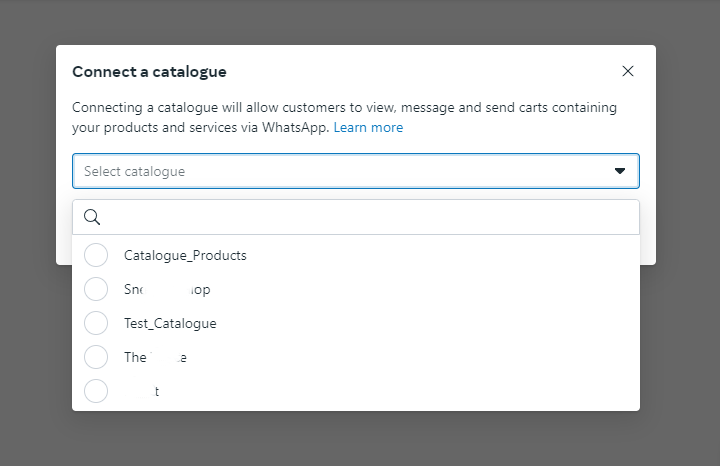
- Click on the `Choose Catalogue` button.
- Select the catalog.
- Click on the `Connect Catalogue` button.
- Use the Catalog on WhatsApp
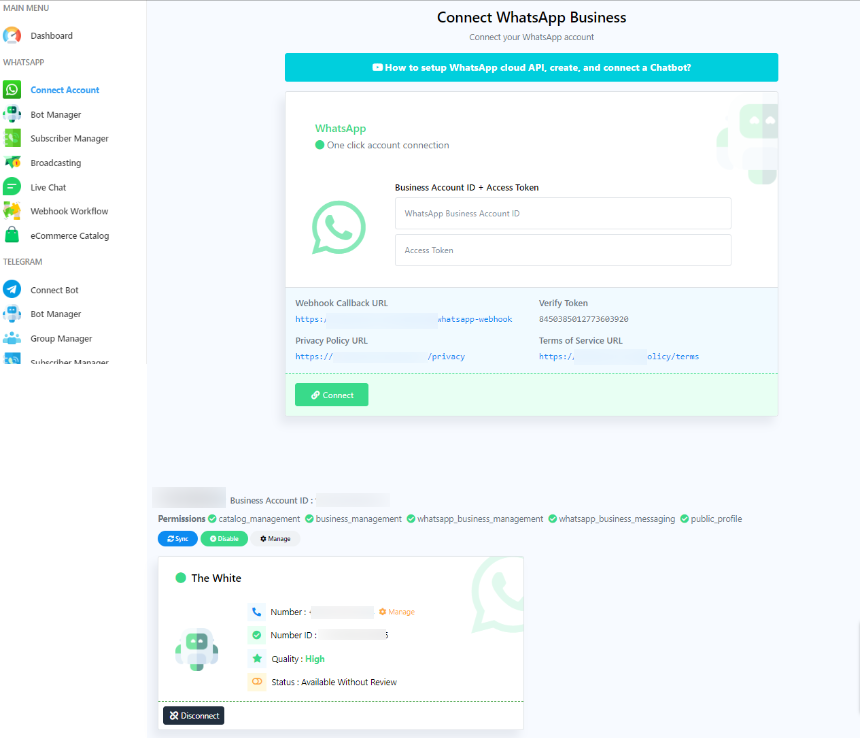
- Ir para `Conectar conta`.
- Escolha a Conta WhatsApp
- Click on the `Synchronize` button.
- Configure Catalog Settings
- Ir para o catálogo de eCommerce
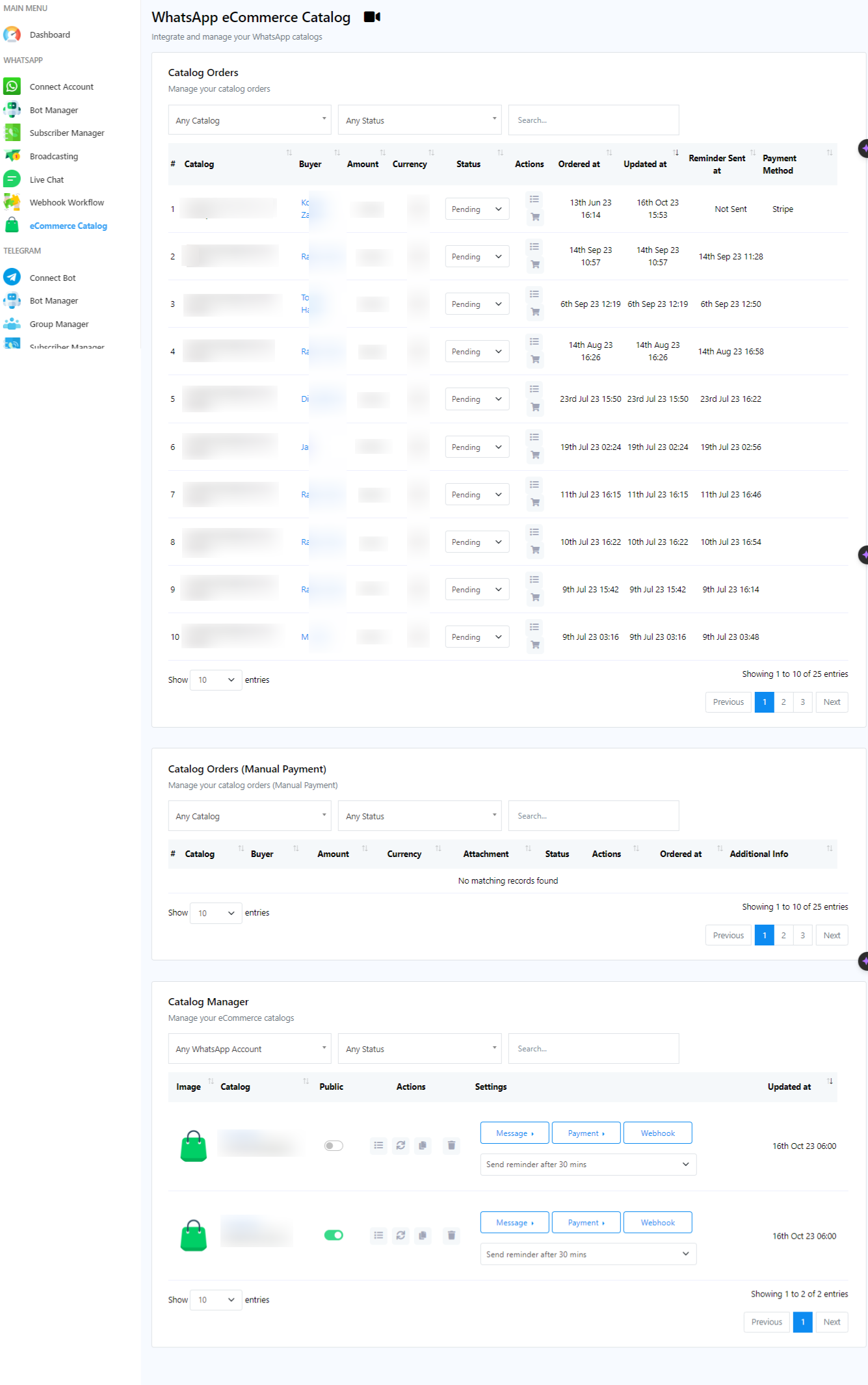
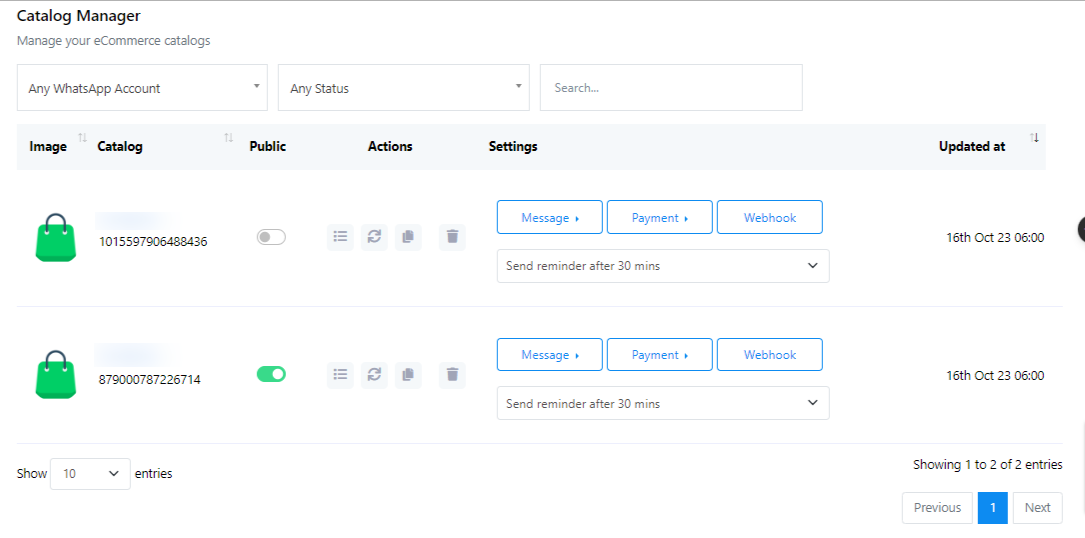
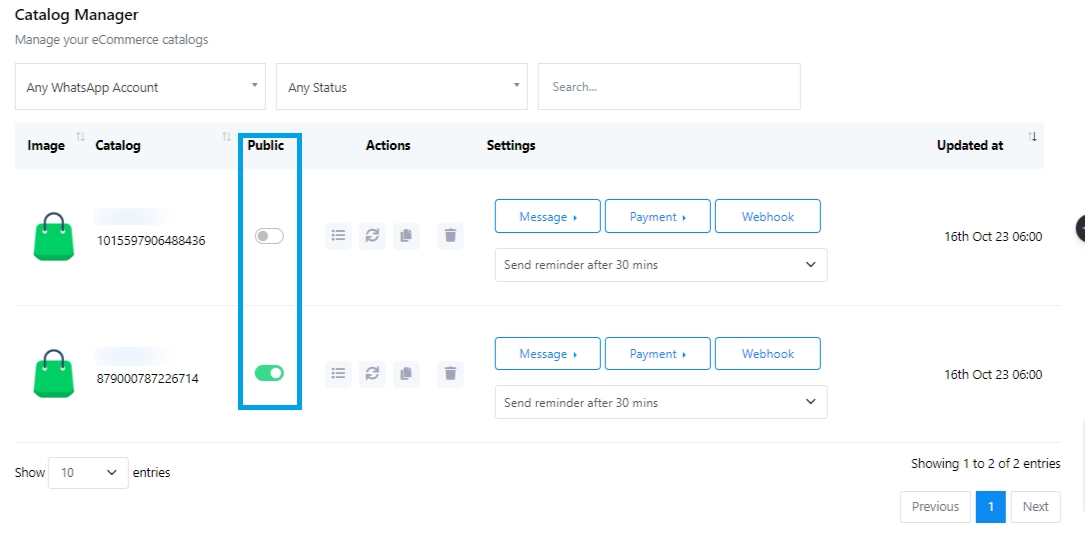
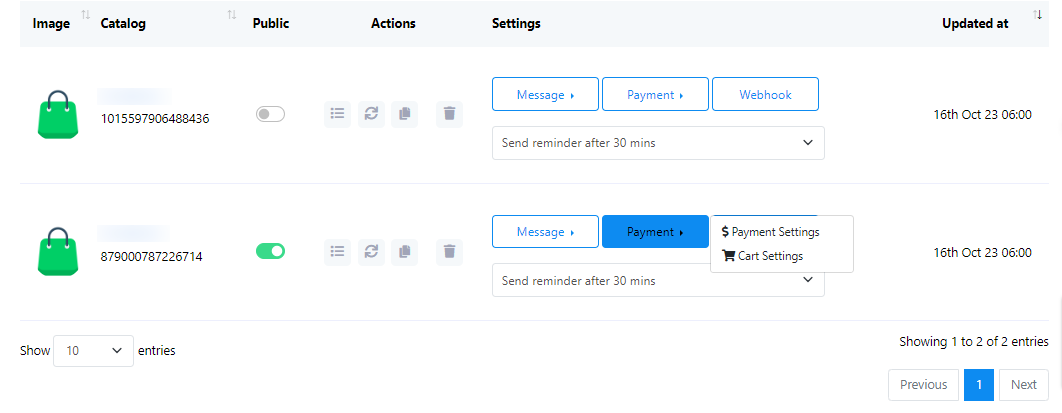
- You`ll find the catalog name and ID. There`s an option to enable or disable the public status.
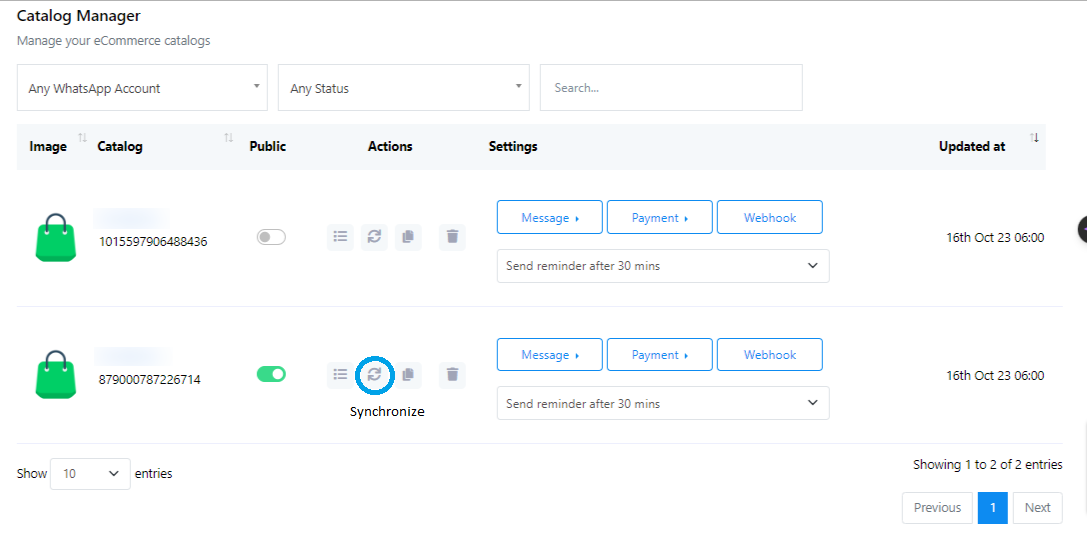
- Under `Actions`, you can view catalog products. Synchronize any added or updated products.
- Select products and click `Synchronize`.
- You can also synchronize the full catalog.
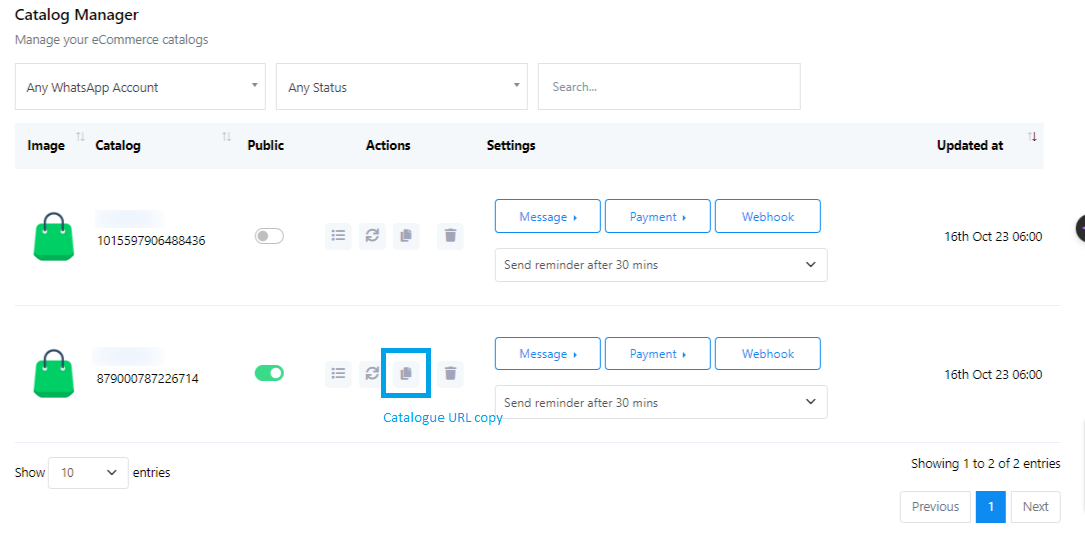
- You can copy the catalog URL to share with your users.
- Remove the catalog by clicking the delete button.
- Configure Message Templates and Settings
- Scroll down to `Catalog Manager`.
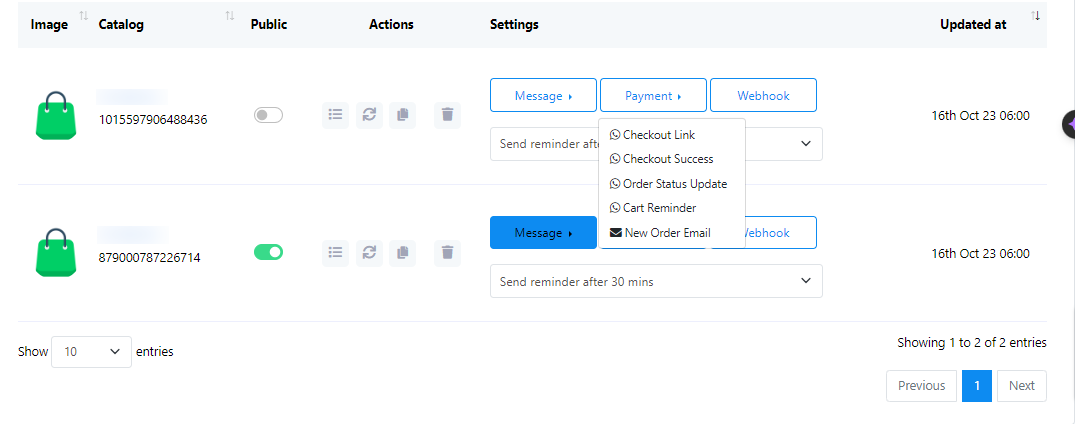
- Edit the message for the Checkout URL and Reminder.
- You can rewrite the message but don`t change the Checkout URL.
- Add the payment method in Payment Settings (multiple options available).
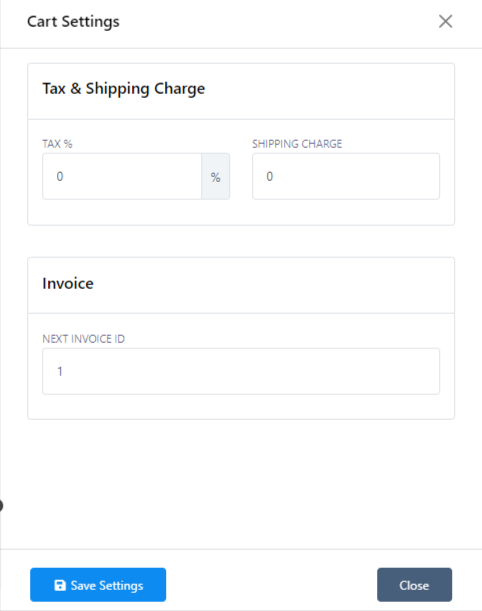
- Configure cart settings, including tax percentage and shipping charges.
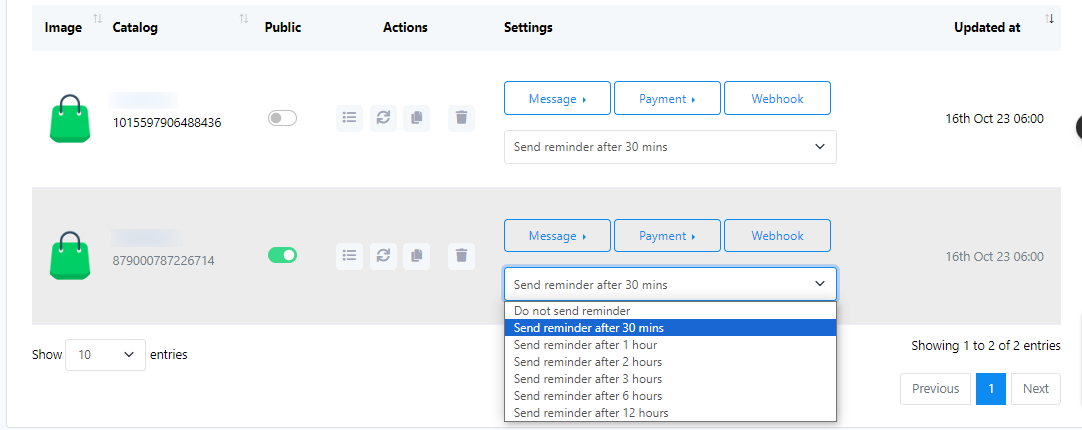
- Set up an abandoned cart reminder message and select the timing.
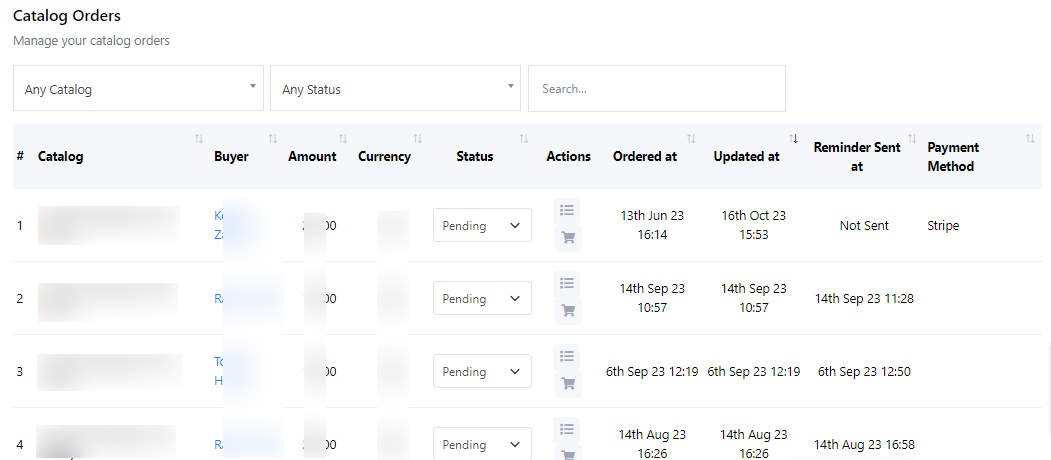
- You can view catalog orders and change the status of an order from the `Catalogue Order` at the top of the page.
- Using the Catalog on WhatsApp
- When a user clicks on the catalog link you shared, the catalog will open on their WhatsApp.
- They can add products to the cart and proceed to checkout.
- Users will receive a checkout link on their WhatsApp.
- They can complete the purchase on the checkout page.
- Configure cart settings, including tax percentage and shipping charges.
- Set up an abandoned cart reminder message and select the timing.
- You can view catalog orders and change the status of an order from the `Catalogue Order` at the top of the page.
Esta documentação passo a passo deve ajudar os usuários a criar um catálogo de comércio eletrônico e usá-lo no WhatsApp seguindo o script fornecido.